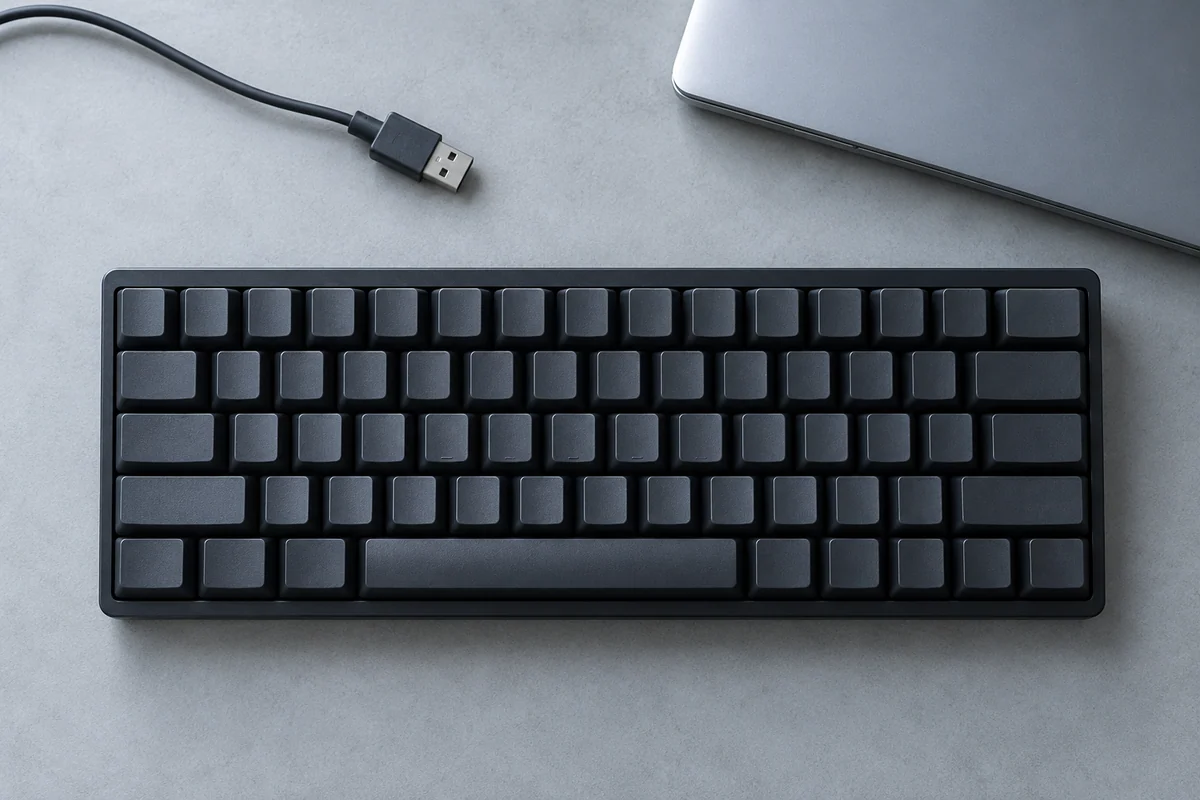
A keyboard can connect successfully while making a familiar task awkward. Physical layout, key labels, operating-system interpretation and application shortcuts are separate checks. Start with the exact regional keyboard version and the tasks you perform, not only the product-family photograph.
A compact layout may move navigation keys or combine functions. A multi-system keyboard may print more than one label on a key. Neither detail is automatically a problem; it needs to match the way you work.
Write a task list before comparing layouts
| Your task | Key or behavior to confirm | Evidence |
|---|---|---|
| Copy and save | System modifier plus C or S | OS and application documentation |
| Navigate documents | Home/End or documented equivalent | Exact layout and system behavior |
| Enter numbers often | Required number layout | Regional product image and specification |
| Use function keys | Function-row mode and required modifier | Model manual |
| Type a language | Physical layout and OS input-source needs | Exact SKU plus OS settings |
Do not assume a product image from another region shows the version in your cart. Record the layout or part identifier explicitly.
Separate a printed label from a command
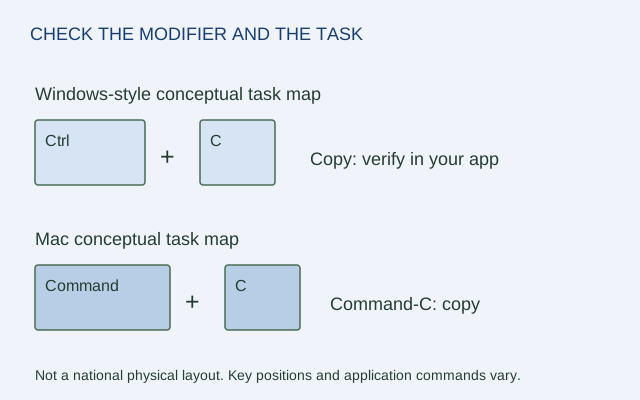
Apple's Mac user guide documents shortcuts such as Command-C and Command-S. Windows workflows commonly use Ctrl-based equivalents, but the actual application and system determine the command. Check your exact app's official shortcut information rather than promising that every familiar combination transfers unchanged.
Logitech's K780 guide explains its model-specific multi-system key labels and setup. Use that as evidence for K780, not a rule for all keyboards with dual legends. A label can suggest the intended role while a system setting or mode still determines how it behaves.
Compare the real working sequence
For an illustrative user who switches between a Mac and another computer, list five repeated commands and the modifier used on each. Then locate those keys on the exact regional layout. If navigation requires a function combination, decide whether that is acceptable before buying rather than discovering it during daily work.
The original diagram shows conceptual modifier positions; it is not a photograph or a claim that every national layout places keys identically.
Close the decision with evidence
Keep layout, system version, connection mode, function-row behavior and app-specific commands in the record. Leave undocumented shortcuts unconfirmed. This guide has not tested typing feel, comfort or shortcut latency. It helps identify whether the documented keys and behaviors match the tasks you actually need.
ORIGINAL REFERENCE DIAGRAM
Sources and scope
Official documentation checked October 17, 2026. The exact models, versions and conditions below matter.
- Apple Mac user guide: keyboard shortcuts — Mac shortcuts commonly use Command, for example Command-C and Command-S; actual commands depend on app and system context.
- Logitech K780 guide — Model-specific setup and key-label guide; an older OS list does not prove current software support.