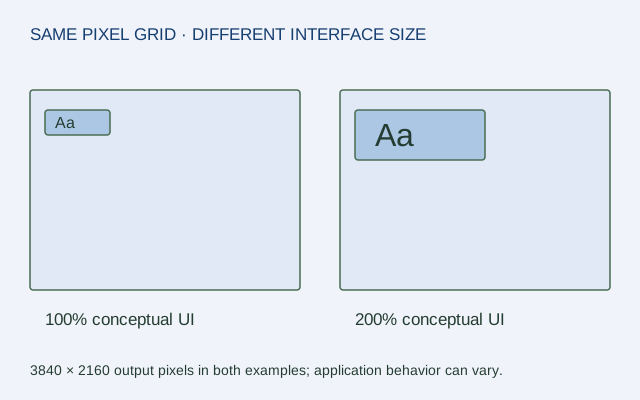
Resolution and scaling answer different questions. Resolution names the pixel grid sent to the display. Interface scaling changes how large text and controls are rendered in that environment. A screen can keep its pixel grid while applications use larger interface elements.
Use the system's own controls rather than assuming the resolution label determines a fixed amount of readable text. The example below concerns Windows 11, following Microsoft's current support guide. Application behavior can vary, so verify the specific program you need.
Find the relevant Windows 11 control
Open Start → Settings → System → Display. Select the intended display if more than one is present. Under Scale & layout, Scale changes the sizing of interface elements. Display resolution is a separate setting in the display configuration. Microsoft's accessibility guide also distinguishes Accessibility → Text size for a text-focused adjustment.
| You want to change | Start with | What to keep separate |
|---|---|---|
| General interface sizing | Display, Scale & layout, Scale | Output resolution |
| Text sizing | Accessibility, Text size | Whether an app follows that setting |
| Output pixel grid | Display resolution | Desired interface size and supported mode |
Write down the original values before changing them. If the system offers confirmation or a revert action, follow that prompt rather than making several unrecorded changes together.
Use arithmetic as an explanation, not a screenshot
In a simplified logical-size model, a 3840 × 2160 pixel grid at 200% scale corresponds to about 1920 × 1080 units of interface workspace. The physical screen still has its original pixels. This arithmetic illustrates the difference; it does not claim that every application's content maps exactly to those dimensions or that image quality was tested.
Changing output resolution is different: it changes the selected pixel grid. If the display and output mode differ, the resulting rendering behavior depends on the hardware and software path. Do not promise a universal appearance from the number alone.
Adjust one thing at a time
Choose the display, record resolution and scale, change the relevant control and inspect the actual applications you use. If only one application remains too small, check its own zoom or accessibility settings before changing the whole system again.
Keep the physical comparison separate. PPI helps describe pixel spacing, while scaling describes interface sizing. Neither proves visual comfort for a particular person. Use the display comparator to understand geometry, and the operating system's documented controls to make a reversible interface adjustment.
ORIGINAL REFERENCE DIAGRAM
Sources and scope
Official documentation checked October 17, 2026. The exact models, versions and conditions below matter.
- Microsoft: make text and apps bigger in Windows — Windows 11 Display > Scale & layout > Scale changes interface sizing; Accessibility > Text size is a separate text control.