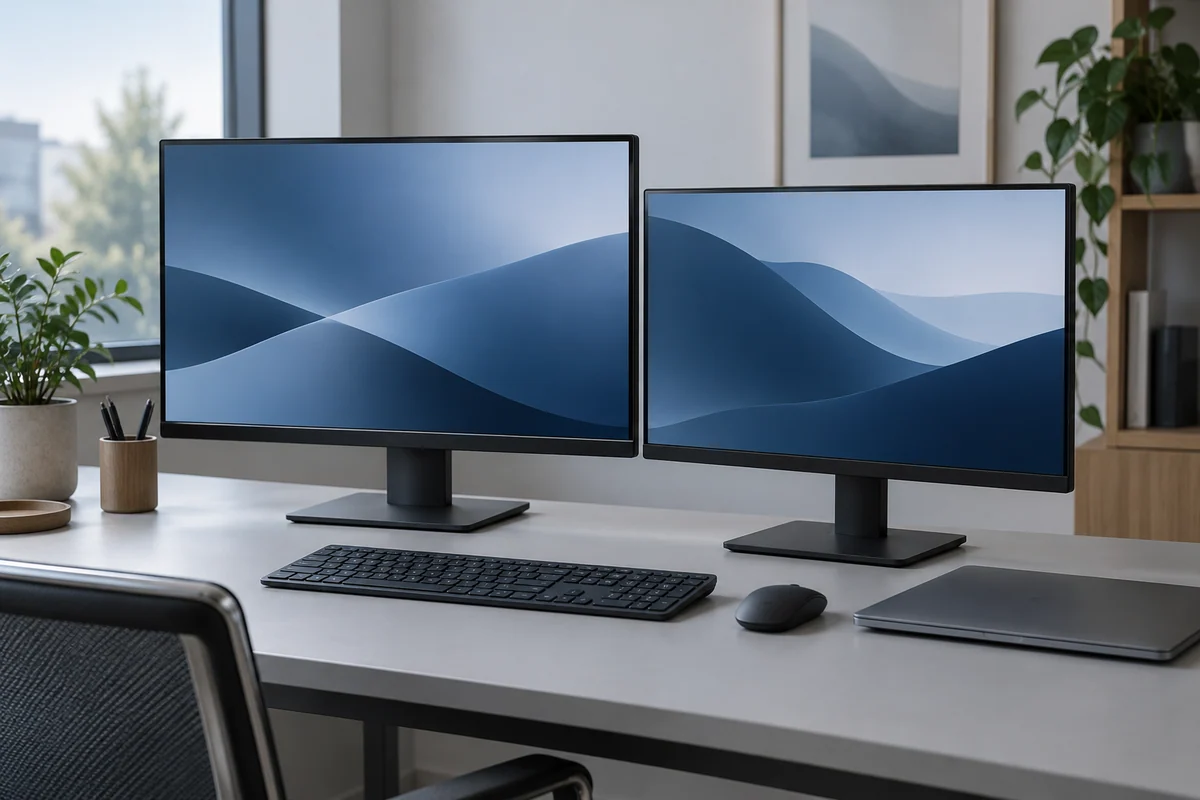
A diagonal describes a physical length. Resolution describes a grid of pixels. Pixel density connects the two, but none of these numbers alone says whether a display has accurate color, comfortable text or the right connection for your computer. Write them as separate fields before comparing screens.
For the mathematical model here, assume a flat rectangular visible area and square pixels. The diagonal excludes bezels and stands. Real chassis dimensions and unusual display shapes need their own manufacturer measurements.
Work from the pixel diagonal
For horizontal pixels x and vertical pixels y, the pixel diagonal is √(x² + y²). Divide that result by the diagonal in inches to get PPI, or pixels per inch. Multiplying the physical diagonal by x divided by the pixel diagonal gives width; using y gives height. Convert inches to centimeters with 2.54.
| Hypothetical screen | Visible width × height | PPI | Total pixels |
|---|---|---|---|
| 27 in, 2560 × 1440 | 59.773 × 33.622 cm | 108.786 | 3,686,400 |
| 24 in, 1920 × 1080 | 53.131 × 29.886 cm | 91.788 | 2,073,600 |
Both examples have a 16:9 pixel ratio. The 27-inch rectangle is 12.5% wider because its diagonal is 12.5% larger at the same aspect ratio. Its pixel density is about 18.52% higher. These are calculated relationships, not measurements of a physical monitor.
Interpret each field on its own
More pixels provide a larger grid, while higher PPI places pixels closer together physically. Interface scaling changes how large application controls appear on that grid. A high-resolution screen can show larger controls after scaling; the resolution number does not dictate a fixed text size.
For a desk-fit check, obtain the actual case width, depth with stand and height. The theoretical visible rectangle does not include any of those additions. For connection planning, check the output, cable and input modes separately.
Keep a comparison record
Record model, visible diagonal, pixel dimensions, calculated PPI, chassis dimensions and intended scaling. Mark unknown fields rather than replacing them with guesses. The comparator draws rectangles at one scale, so a smaller screen is not made equal in size by a decorative illustration.
Swap horizontal and vertical pixels to model an ideal rotated rectangle: width and height exchange, while PPI and total pixels remain unchanged. That arithmetic does not establish whether a particular stand rotates or an operating system supports the intended mode. Use the tool for geometry and the exact product documentation for the hardware decision.
SCREEN GEOMETRY / SAME PHYSICAL SCALE
27 inches and 24 inches, side by side.
Keep the calculation in its lane. Visible area and PPI do not establish connection compatibility, refresh support, color accuracy or ergonomic comfort. Check the exact hardware documentation.